CartRight Adds LTL Freight Quotes to Shopify Order Pages
CartRight now lets Shopify merchants get LTL freight estimates right from their order pages. The new feature works even when CartRight was not used at checkout. It is available to all merchants with the app installed.
Before this update, merchants had to use CartRight rates at checkout or send an order to CartRight and build a quote from scratch.
Now, merchants can view an estimated rate, adjust the load, and send the order to CartRight with the quote attached. They can do it all without leaving Shopify.
What You Can Do
Get LTL rates on Shopify orders. See an estimated LTL rate and transit time on the order page, even if CartRight was not used at checkout.
Adjust the load. Change the number of pallets, dimensions, weight, stackability and freight class for one order without changing your product catalog.
Choose pickup and delivery services. Add or remove services such as liftgate, residential and appointment delivery to see how they affect the rate.
Send orders to CartRight. Pass the order to CartRight with its load, origin, selected services and estimated rate attached.
Available Now for CartRight Merchants
The feature is available now to all CartRight merchants, including new users. To start, add the CartRight · Indicative LTL block to your Shopify order page. You only need to do this once. No new app or checkout changes are required.
Set the Load for Each Order
Each order can have its own freight load. CartRight uses your saved product details when available. If none are saved, it starts with a standard pallet that you can edit.
In Edit Load, you can:
Change pallet size, weight, dimensions and freight class.
Combine items into one load for the order.
Choose a ship-from location in Shopify or a CartRight warehouse.
Add pickup and delivery services, such as liftgate, residential, appointment and inside delivery.
The ship-to address comes from the Shopify order. Any changes you make apply only to that order and do not affect your product catalog.
Once the load is set, CartRight finds the best available indicative LTL rate. Freight Right reviews and confirms the rate after you submit the order.
How It Works
Add the CartRight Block. Open any order in Shopify admin. In the Blocks section, click + Block and select CartRight · Indicative LTL. You only need to do this once.
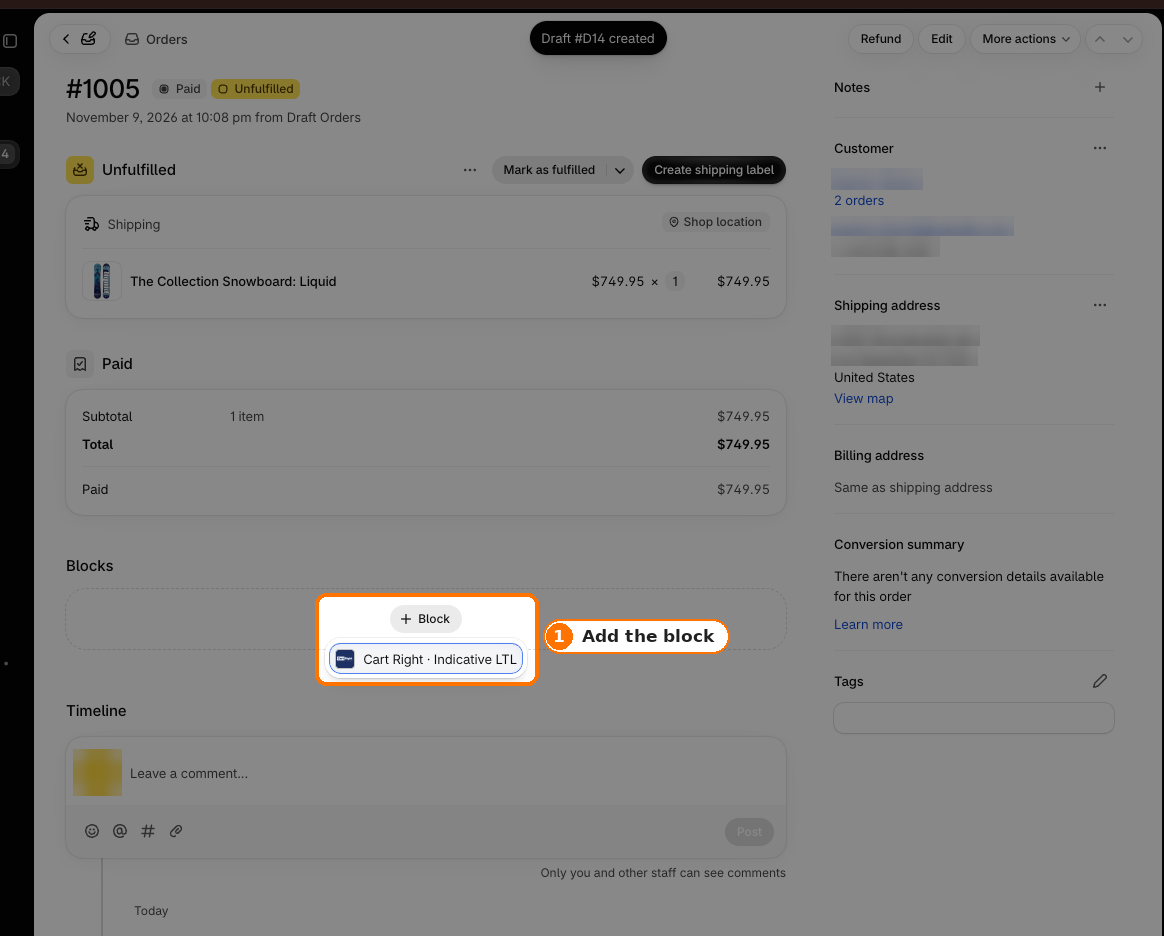
Above - Step 1: Add the CartRight block
Review the Indicative Rate. CartRight uses your saved product load details to prepare an estimated LTL rate. If none are available, it starts with a standard pallet. The block shows the rate, transit time, shipping locations, selected services and load summary.
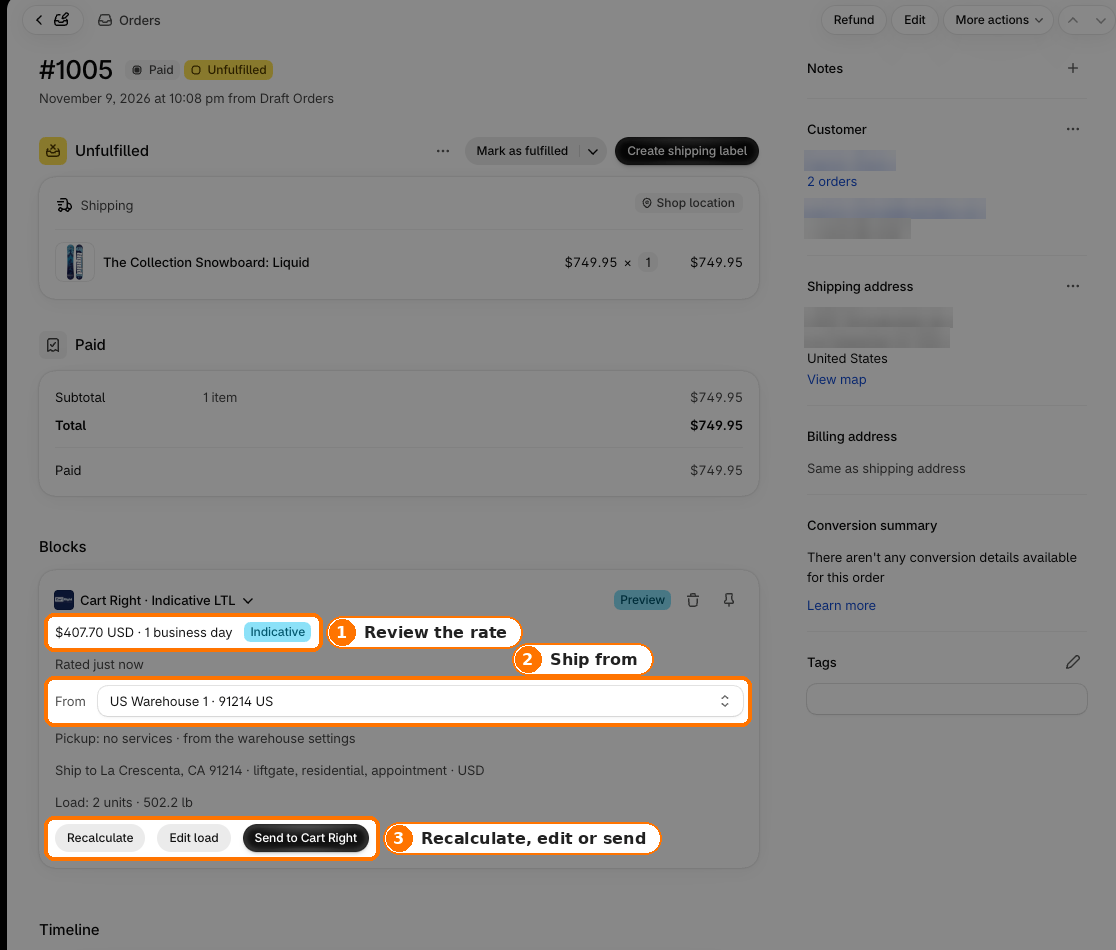
Above - Step 2: Review the rate
Check Shipping Locations. The delivery address comes from the Shopify order. CartRight selects the origin based on your saved warehouse settings or Shopify fulfillment location. You can change the origin in Edit Load.
Edit the Load and Services. Click Edit Load to adjust handling units, dimensions, weight, stackability, freight class, and pickup or delivery services. Changes apply only to this order and do not affect your product catalog.
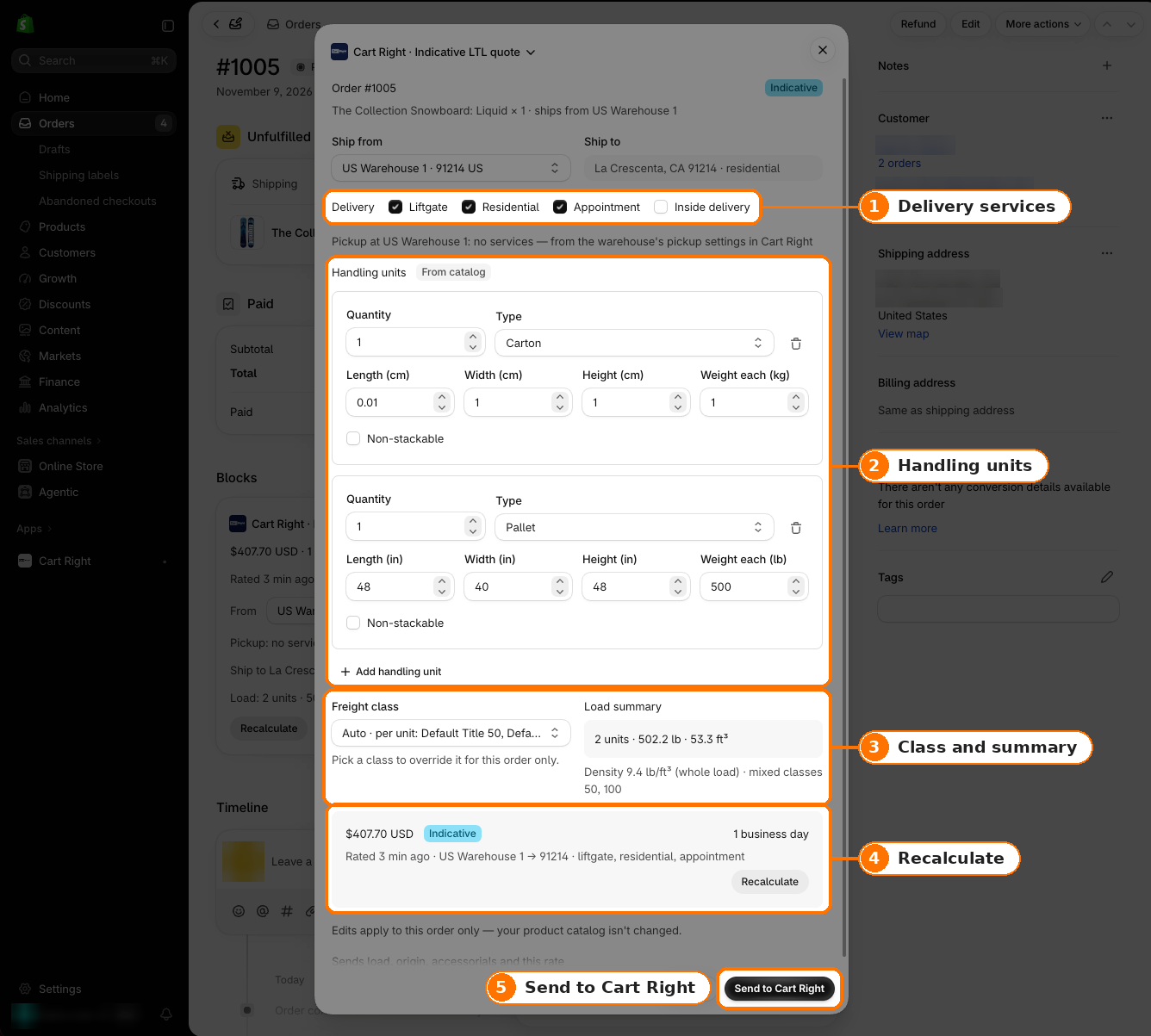
Above - Step 3: Edit load
Recalculate the Rate. Once the load and services are set, click Recalculate. CartRight returns an updated indicative LTL rate and transit time based on your changes.
Send the Order to CartRight. Click Send to CartRight when the quote looks right. The block confirms the transfer and displays the CartRight order number, indicative rate and a link to open the order in CartRight.
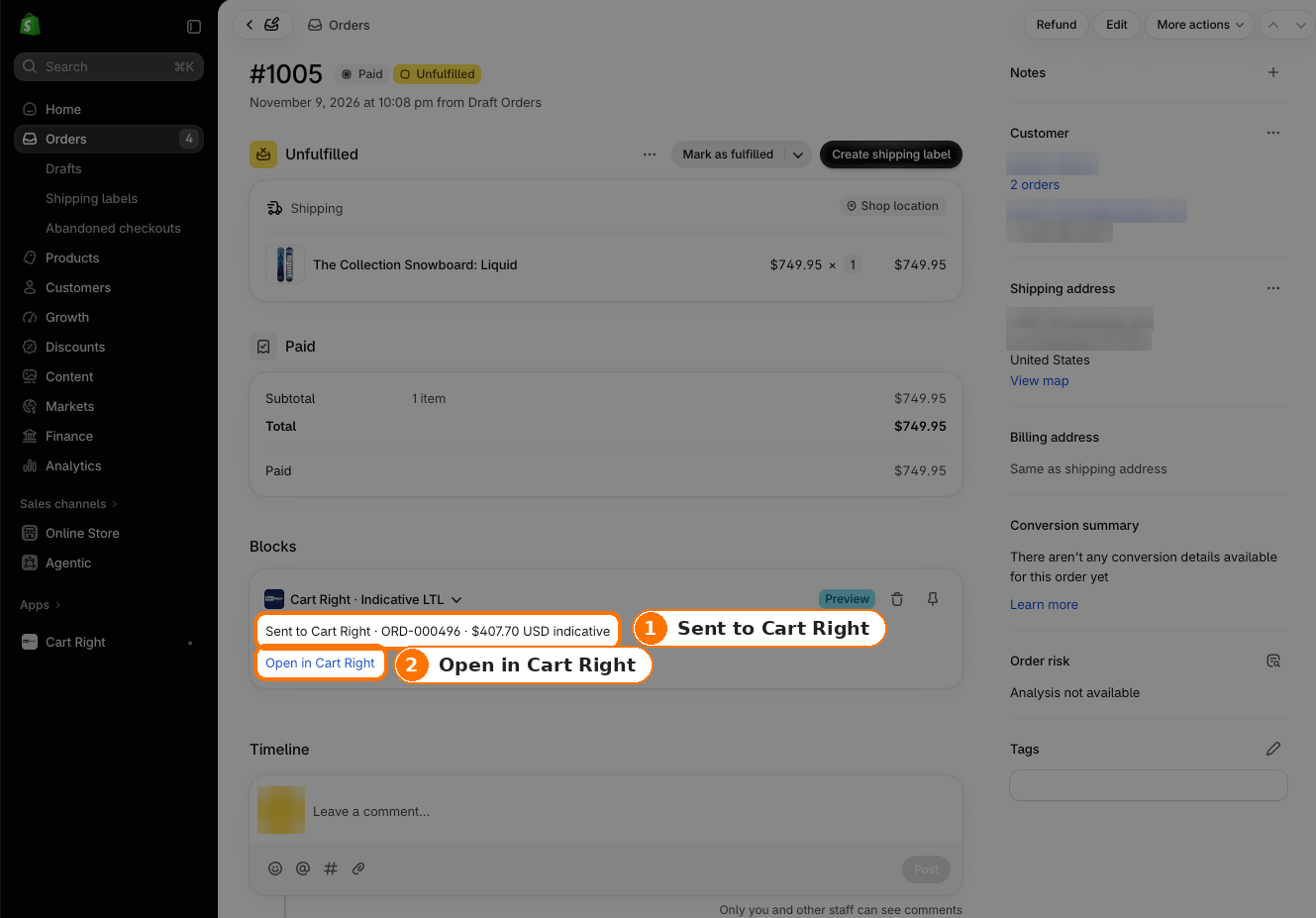
Above - Step 4: Sent to CartRight
Review the Order in CartRight. Open the order in CartRight to see its load, origin, selected services and indicative rate. The order appears with a Quote Requested status. Freight Right then reviews and confirms the rate.
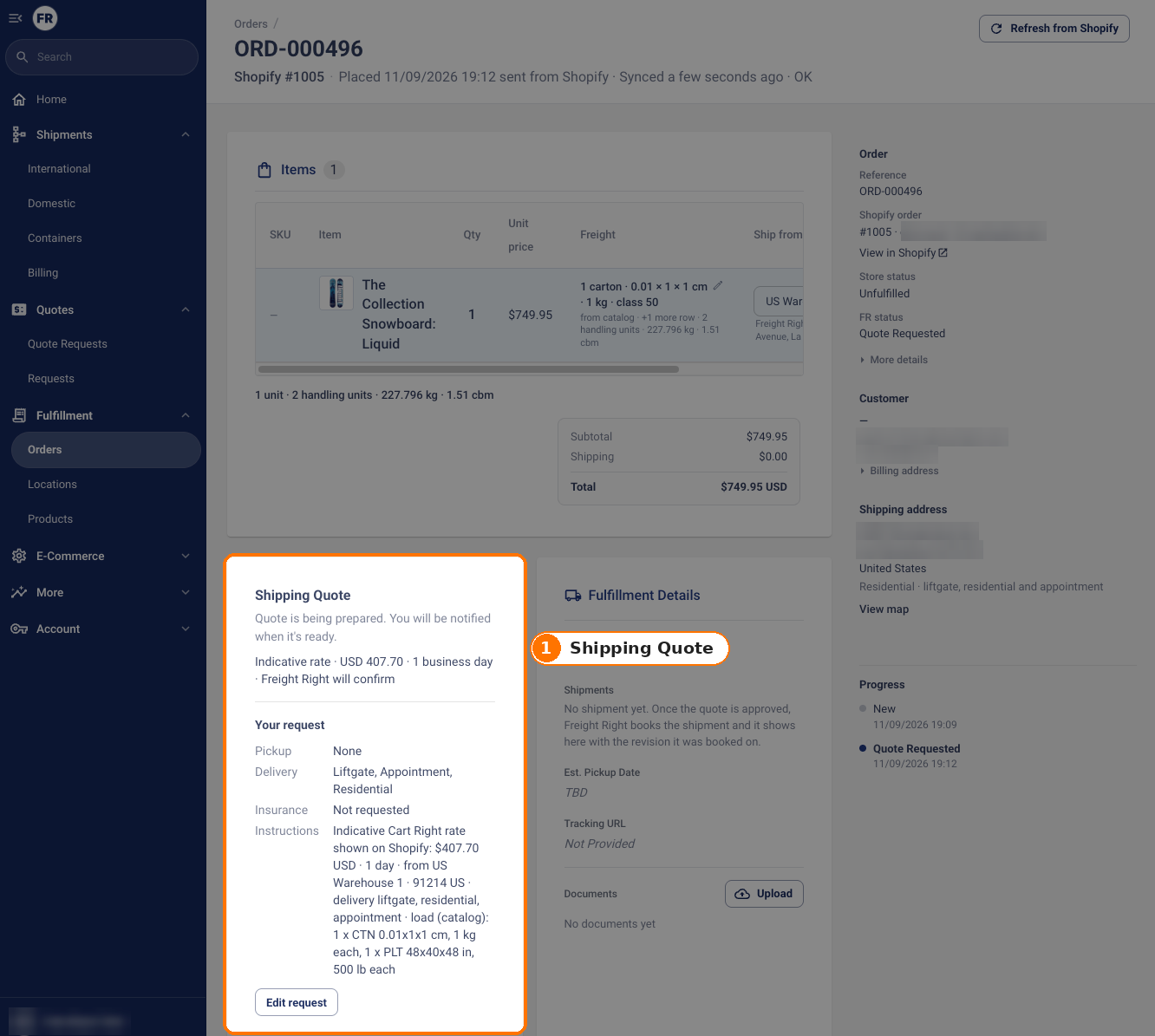
Above - Step 5: In CartRight
How Indicative Rates Work
The rate shown on the Shopify order page is an estimate based on the load, origin, destination and services selected. It is not a confirmed price, and no freight is booked from the order page.
When you send the order to CartRight, Freight Right reviews the request and confirms the rate.
If the Shopify order changes, CartRight rebuilds the load using your saved product details and calculates a new rate. Your shipping origin and selected services stay the same, but load edits tied to the old order lines are cleared. If a rate is out of date, CartRight asks you to recalculate before sending.
How It Fits With CartRight Checkout
This feature is for Shopify orders that did not use CartRight freight rates at checkout. Orders that already used CartRight rates keep their selected rate.
The new order-page feature does not replace live freight rates at checkout. It gives merchants another way to get an LTL estimate after an order is placed.
Current Limitations
US and Canada only. Supports domestic and cross-border LTL shipping between the US and Canada.
LTL freight only. Orders with only parcel items show "No LTL quote."
Saved load details. Products with saved LTL details can receive automatic estimates. Other products need a load set in Edit Load.
One shipment at a time. Orders from multiple shipping locations are quoted one fulfillment at a time. Rates cannot be combined.
Excluded services. Limited-access delivery, hazardous freight and temperature-controlled freight are not supported.
One-time setup. Merchants must add the CartRight block to the Shopify order page before using it.
Get Started
Already using CartRight? Open any Shopify order, click + Block in the Blocks section and add CartRight · Indicative LTL. You can then review or create LTL estimates from the order page.
New to CartRight? Install the app from the Shopify App Store and create a free Freight Right account at app.freightright.com. Add LTL load details to your products so CartRight can prepare rates automatically. Then add the block to your Shopify order page.
More Blog Posts

Saying the Quiet Part Out Loud About AI and People
AI will eliminate some jobs, but it can also empower skilled workers. Robert Khachatryan explains how AI automation boosts productivity and creates value.